Stay - Comtrol Integration Enhancements
The following enhancements have been made to the Stay - Comtrol integration:
Indicate Device Manufacturer Model
-
The following messages sent from Comtrol includes a dmm field that denotes the device manufacturer model:
-
Error
-
Express checkout request
-
Folio Information request
-
Folio items request
-
Guest message request
-
Guest message delivered
-
Maid code
-
New message notification
-
POS post request
-
Post
-
Post call charge
-
Resync data
-
Resync end
-
Resync start
-
Unknown
-
-
Users can perform lookup using a dmm of a device.
Generate Reference Numbers for Reservations
-
Users can set the default length of the reference numbers configured for reservations that support guest reservation messages. When a reference number configured is lesser than the default length set, validation occurs, and the reference number will not be assigned.
-
The following reference numbers are generated based on the default length set when the associated fields are sent from Stay to Comtrol.
-
The account reference number is generated when the account number of an account is sent from Stay.
-
The guest profile reference number is generated when the guest profile ID of a guest profile is sent from Stay.
-
The reservation reference number is generated when the reservation confirmation ID is sent from Stay.
-
-
Based on the cache expiration time configured, when users perform lookup operations for a device, the existing reference number stored in cache will be sent until the expiration time is reached. Once the expiration time reached, the database is queried, and the new reference number is sent and updated in the cache.
-
The response sent from Stay for these messages includes the reference number of the account.
-
Users can use the dmm value of a device to perform look up and post charges. The reference number sent in response is generated as per the default length configured.
-
When a reference number is generated for a device, the length of the number is determined by the default value set for the device.
-
Processing of Key Create Requests
-
When a key create request is sent from a mobile device to Comtrol and when the length of the characters in the message exceeds 999 characters, Comtrol breaks the response messages into multiple parts. The first 999 characters are included in the first message, and the remaining characters are included in the successive response messages.
-
When the Track 2 checkbox is selected in the Track 2 section of the Comtrol interface and the Track 2 Format is entered as $gn, the account reference number will be encoded in Track 2 format from Stay to Comtrol in the Key Create message when creating keys for the reservation.
Configure Parking Charges for Reservations
-
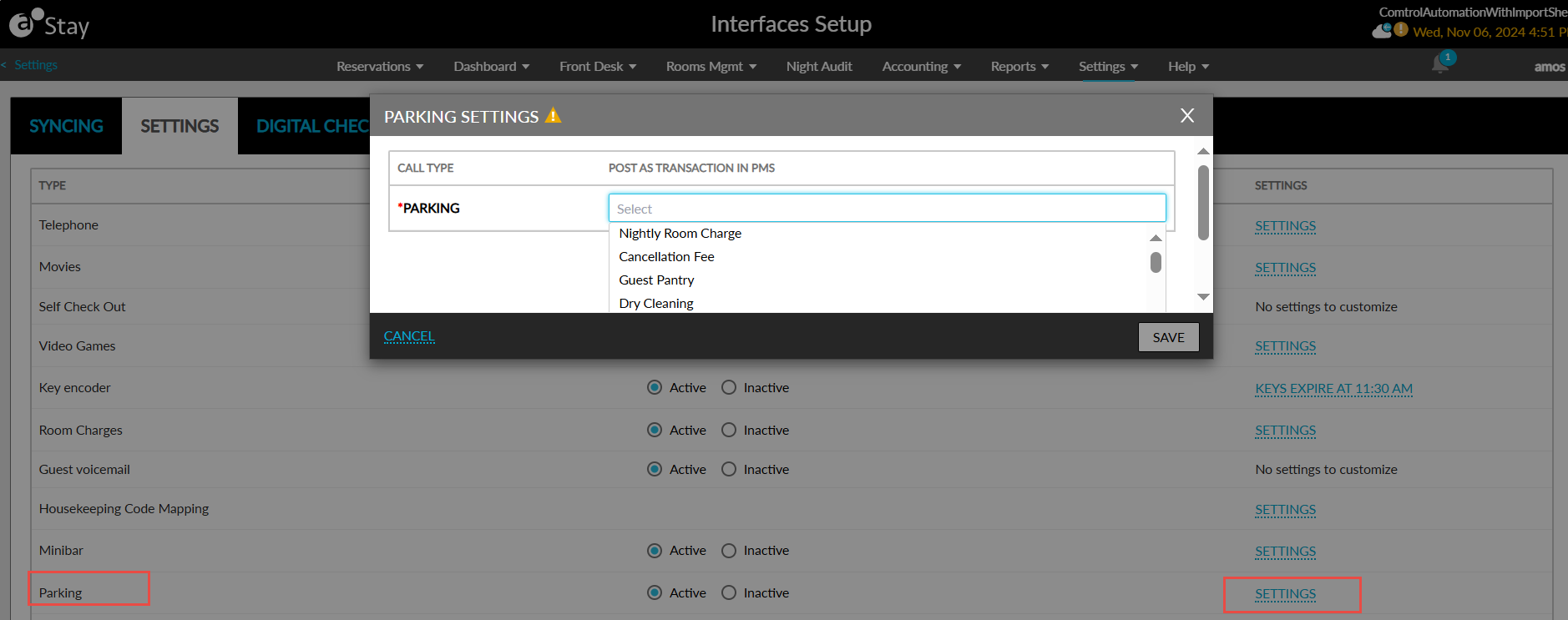
Users can configure the parking charges to be posted to reservations. A new line item, Parking, has been added to the Settings tab of the Interfaces Setup screen (Settings ➜ Interfaces).
-
When users select the Active option, a new hyperlink, Settings, is displayed. When clicked, the Parking Settings pop-up screen appears.
-
Users can select the transaction item available in Stay using which the parking charges must be posted to reservations.
-
Send Loyalty Details to Comtrol
The loyalty program and tier associated with a reservation is sent from Stay to Comtrol as part of the following messages:
-
Check In Room
-
Folio Information Lookup Response
-
Resync Data
-
Guest Name
Account Lookup Using Reference Numbers
-
The account type of an account (guest, house account, group, company) is included in the Folio Information Response message.
-
A new field, accountNumber, has been added to the Guest Status message that sends the account number of an account from Stay to Comtrol.
-
Users can now perform account lookup using the account reference number of a house account or group.
Send E-Coupon Details of Reservations
-
Details of the e-coupons associated with a reservation are sent as separate folios as part of the Folio Information Response message from Stay to Comtrol. When a lookup is performed through Comtrol using the account number of the reservation, the coupon code of the e-coupon associated with the reservation is sent in the following format: Account number - e-coupon code as separate folio.
-
When users select an e-coupon for a reservation when posting charges from a POS device, a POS Post Request message is sent from Comtrol to Stay that includes the account number and the e-coupon code. A reservation lookup is performed in Stay using the account number.
-
The charges are not posted successfully when no coupon is associated with the reservation or if the coupon is inactive.
-
The charges are posted successfully when the coupon is associated with the reservation. The account reference number of the reservation and the e-coupon code are sent in the following format in the Post Post Response message from Stay to Comtrol: <accountNumber>-<couponCode>.
-
-
Users can select the fields that send e-coupon data from Stay to Comtrol in the Point of Sale Settings pop-up screen (Settings ➜ Interfaces ➜ Settings ➜ Point of Sale ➜ Add/modify) and the Default Settings pop-up screen (Settings ➜ Interfaces ➜ Settings ➜ Point of Sale ➜ Default Settings) when configuring settings for each individual POS system or the default settings.
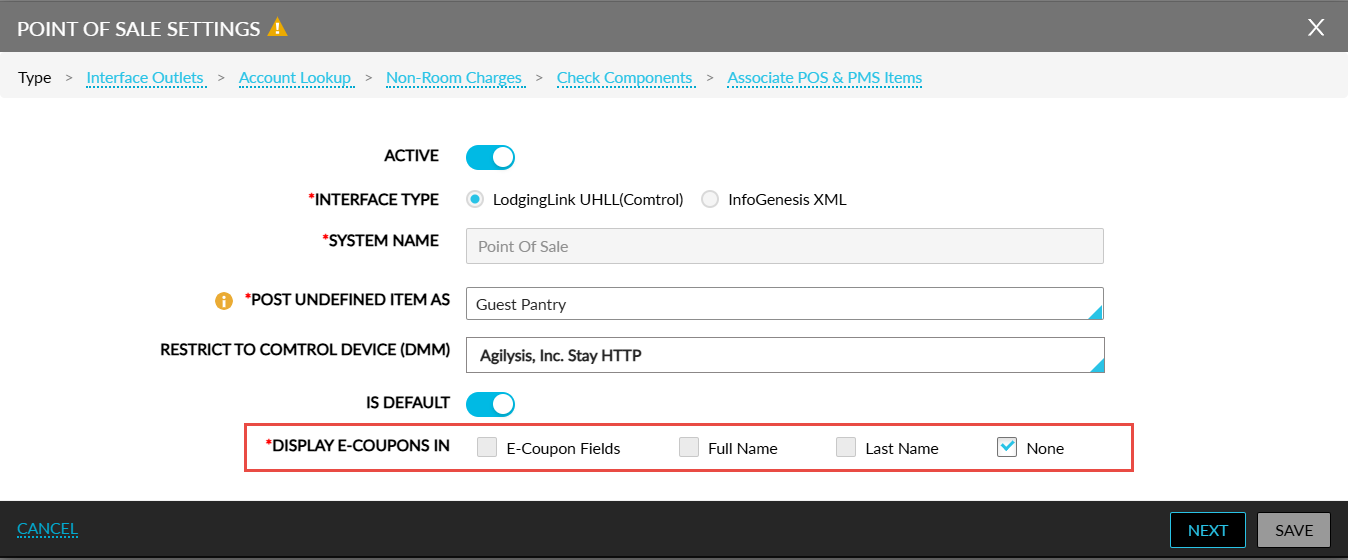
Based on the options selected in the Display E-Coupons In field, the following details are sent in the Folio Information Response and POS Post Response messages:
-
E-Coupon Fields: When selected, the e-coupon name and code are sent in the new e-coupon fields introduced.
-
Full Name: When selected, the e-coupon code is sent along with the guest’s full name.
-
Last Name: When selected, the e-coupon code is sent along with the guest’s last name
-
None: When selected, the e-coupon details are not sent. This option is selected by default. Users must uncheck this option to select the remaining options.
-
When the first three options are selected, the e-coupon name and code are sent along with the guest’s full name.
Configure Devices That Can Send E-Coupon Data
-
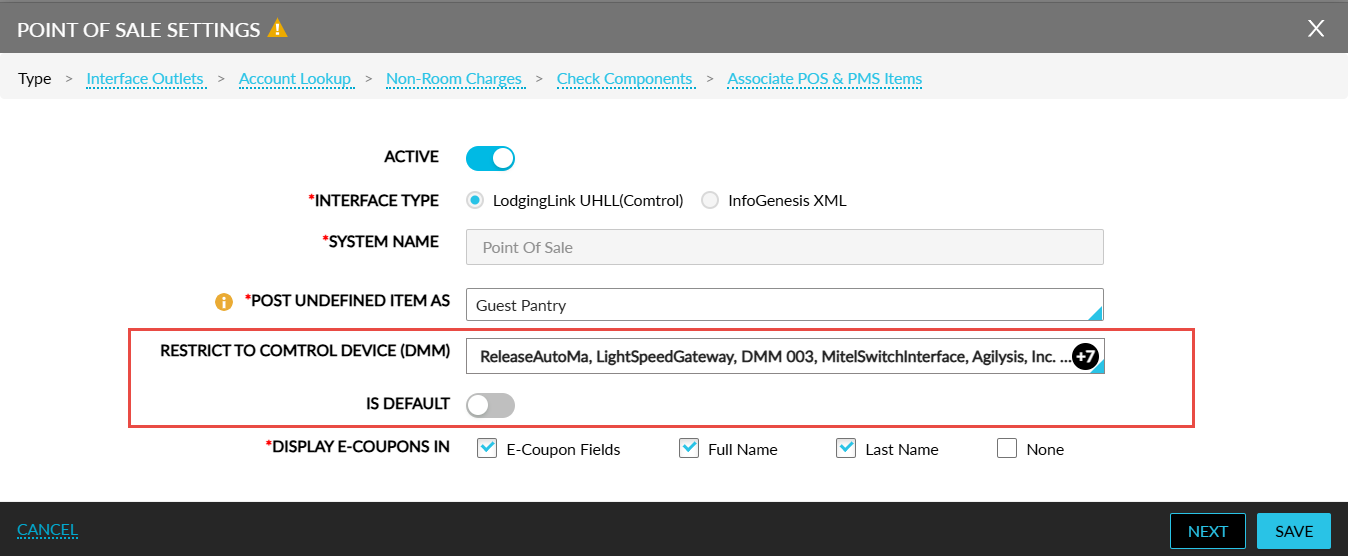
Users can select the devices that send e-coupon data for each POS system that has the Interface Type selected as LodgingLink UHLL(Comtrol) in the Point of Sale Settings pop-up screen (Settings ➜ Interfaces ➜ Settings ➜ Point of Sale ➜ Add). The list of devices can be selected from the newly added Restrict to Comtrol Device (DMM) multi-select drop-down list in the Type tab of the screen. This field displays the list of devices available in the property.
-
Based on the options selected in the Account Lookup tab of the Point of Sale Settings pop-up screen, a lookup can be performed using the selected devices for each POS system.
-
The response sent from Stay to Comtrol includes e-coupon details based on the options selected in the Display E-Coupons In field in the Type tab of the screen.
-
The charges can be posted to the accounts from the selected devices based on the option selected in the Interfaces section of the reservation (Allow Charges or Do Not Allow Charges).
-
-
When a same device is selected as part of multiple POS systems, users can configure the default behaviour for the account lookup of the device by enabling the Is Default flag for the device in the preferred POS system.
-
When enabled, when an account lookup is performed from any POS system, the e-coupon details will be sent based on the options selected in the Display E-Coupons In field and account lookup will be performed based on the options selected in the Account Lookup tab for the device in the POS system that has the Is Default flag enabled.
-
The Is Default flag can be enabled for a device in only one POS system.
-
When no devices are selected for a POS system but the Is Default flag is enabled, the flag cannot be enabled for any of the devices in any other POS system. In this case, account lookup will be performed, and e-coupon details will be sent for all devices based on the options selected in the POS system for which the Is Default flag is enabled.
-
New Fields Added to Messages
-
The following new fields have been added to messages sent from Stay to Comtrol.
|
Field |
Message |
|---|---|
|
Loyalty Level |
Check In Room |
|
Property Code |
Check In Room |
|
Property Code |
Check Out Room |
|
Property Code |
Folio Information Response |
|
Room Number |
Restrict Phone |
|
DND Status |
Resync Data |
|
Message Waiting |
Resync Data |
-
Two new fields, Room Number and Time, have been added to the response messages sent for Key Create Request and POS Post Charge messages.
-
The following new fields have been added to the outbound messages sent from Stay to Comtrol.
|
Message |
Fields |
|---|---|
|
Check In Room |
Loyalty Level |
|
Folio Information Response |
|
|
POS Post Response |
Charge Amount |
|
Restrict Phone |
Room Number |
|
Resync Data |
Message Waiting |
|
Room Move |
Property Code |
Configure Minibar Charges for Reservations
-
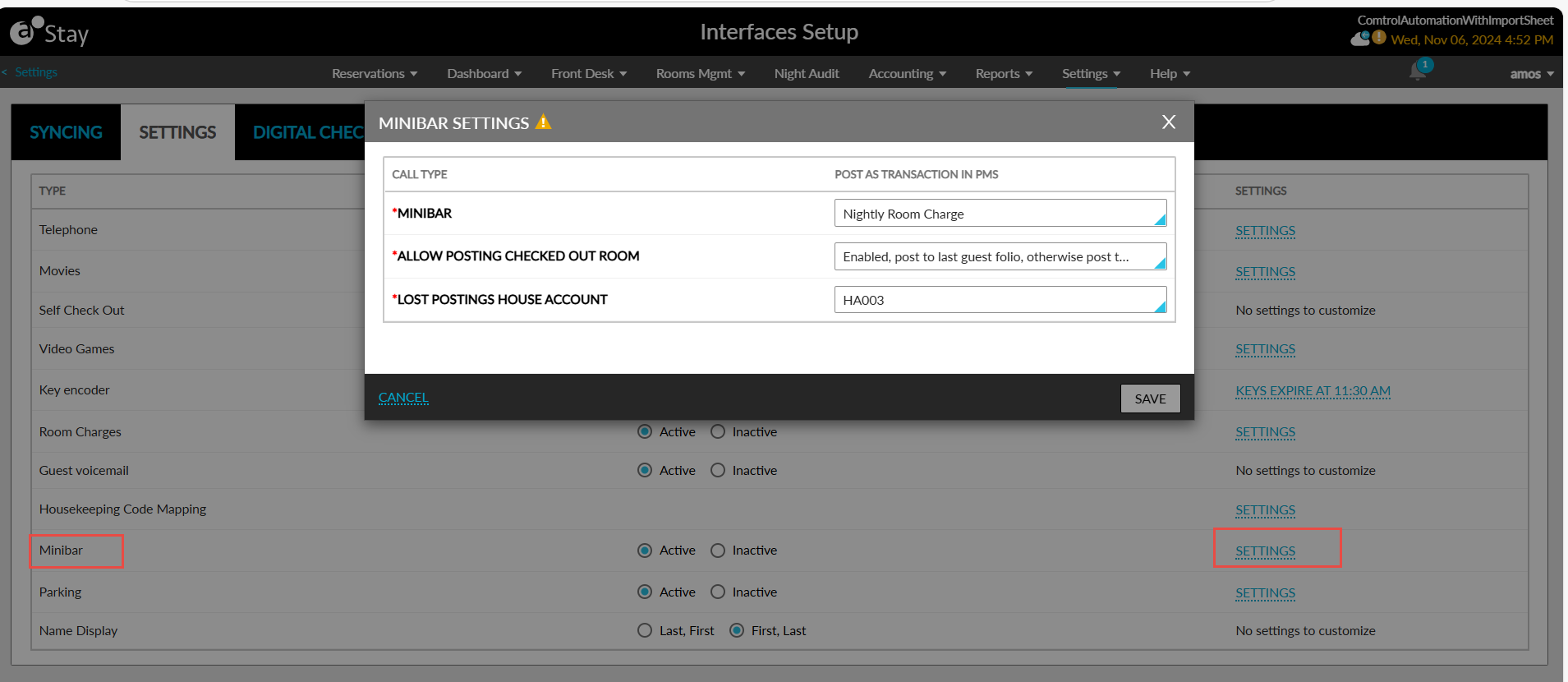
Users can configure the minibar charges to be posted to reservations. A new line item, Minibar, has been added to the Settings tab of the Interfaces Setup screen (Settings ➜ Interfaces).
-
When users select the Active option, a new hyperlink, Settings, is displayed. When clicked, the Mini Settings pop-up screen appears. This screen displays the following fields:
-
|
Field |
Description |
|---|---|
|
Minibar |
This is a mandatory single-select drop-down list that allows users to select the transaction using which the minibar charges must be posted to reservations. |
|
Allow Posting Checked Out Room |
This is a mandatory single-select drop-down list that allows users to configure how charges must be posted to checked out reservations. Users can select from the following options:
|
|
Lost Postings House Account |
This is a mandatory single-select drop-down list that allows users to select the house account to which the minibar charges must be posted. |
Post Charges to Reservations
Users can now post charges to reservations using just the room number. Previously, users could post charges using the station number only.
Configure Options for Resync
-
A new option, Resync Fallback for Disallow Status, has been added to the On-Prem Device section of the Comtrol interface (All Settings ➜ Administration ➜ Interfaces and Channel Management ➜ Settings).
-
When selected, the reset data flows (check-in and checkout) are performed in Stay when a Resync Start Response message is sent from Comtrol with Disallow status for a device that does not support resync.
-
Send Full Name of Accounts to Comtrol
-
The following details are included in the Post Post Response message sent from Stay to Comtrol:
-
The full name of the guest for guest reservations
-
The house account name for house accounts
-
The group name for group masters
-
Account Lookup Using Account and Room Numbers
-
When posting charges to a reservation in Stay, a lookup is performed using the account number included in the message followed by the room number.
-
When only the account number is mentioned, charges are posted to the account.
-
When only the amount is mentioned, charges are posted to the default room number configured in the Folio Information Responses Default Room field in the On-Prem Device section of the Comtrol interface (All Settings ➜ Administration ➜ Interfaces and Channel Management ➜ Settings).
-
When only the room number is mentioned, charges are posted to the reservation checked into the room.
-
When no room is assigned for that account, the Post Pos Response message will contain default room number value configured in the Folio Information Responses Default Room settings in the On-Prem Device section of the Comtrol interface (All Settings ➜ Administration ➜ Interfaces and Channel Management ➜ Settings).
-
Search Multiple Entities Using Single Input Field
-
Users can search for multiple entities using a single input field. A new section, Comtrol Multi Search, has been added to the Comtrol interface (All Settings ➜ Administration ➜ Interfaces and Channel Management ➜ Settings) that displays the following options:
-
Account Number Field (Lookup/Posting by Charge Posting ID)
-
Room Number Field (Lookup by House Account and Group Code)
-
Full Name field (Lookup by Room, House Account and Group Code; Posting by Room or Charge Posting ID)
-
The following table lists the scenarios on how lookup is performed, and charges are posted.
|
Option |
Description |
|---|---|
|
Account Number Field (Lookup/Posting by Charge Posting ID) |
In this case, since the account field is also mapped to charge posting ID, users can perform a lookup and post charges using either the account number of an account or the charge posting ID. The result of the lookup includes accounts with both account number and charge posting ID that match the entered value. |
|
Room Number Field (Lookup by House Account and Group Code) |
In this case, since the room number is also mapped to house account and group code, users can perform a lookup using either the room number or house account code or group code. The result of the lookup includes accounts with room number, house account code, and group code that match the entered value. |
|
Full Name field (Lookup by Room, House Account and Group Code; Posting by Room or Charge Posting ID) |
In this case, since the full name is also mapped to room number, house account and group code, users can perform a lookup using either the full name, room number, house account code, or group code. The result of the lookup includes accounts with full name, room number, house account code, and group code that match the entered value. Also, since the full name field is also mapped to room number and charge posting ID, users can post charges to an account using the full name, room number, or charge posting ID. |
Send Reservation Reference Number of Reservations
-
When the Use Numeric Confirmation Numbers (Guest Reservation, Parking, Checkin) checkbox is selected in the On-Prem Device section of the Comtrol interface, the reservation reference number is sent in the reservation fields of the Guest Reservation, Parking, and Checkin messages.
-
When the checkbox is not selected, the confirmation ID of the reservation is sent encoded in the reservation fields of the Guest Reservation, Parking, and Checkin messages.
-